

Using the Addendum Feature in Methvin
When clients request changes in your estimate, it’s not practical to manually edit each line item. Instead, Methvin provides a smart Addendum Import tool to help you review, compare, and apply changes efficiently.
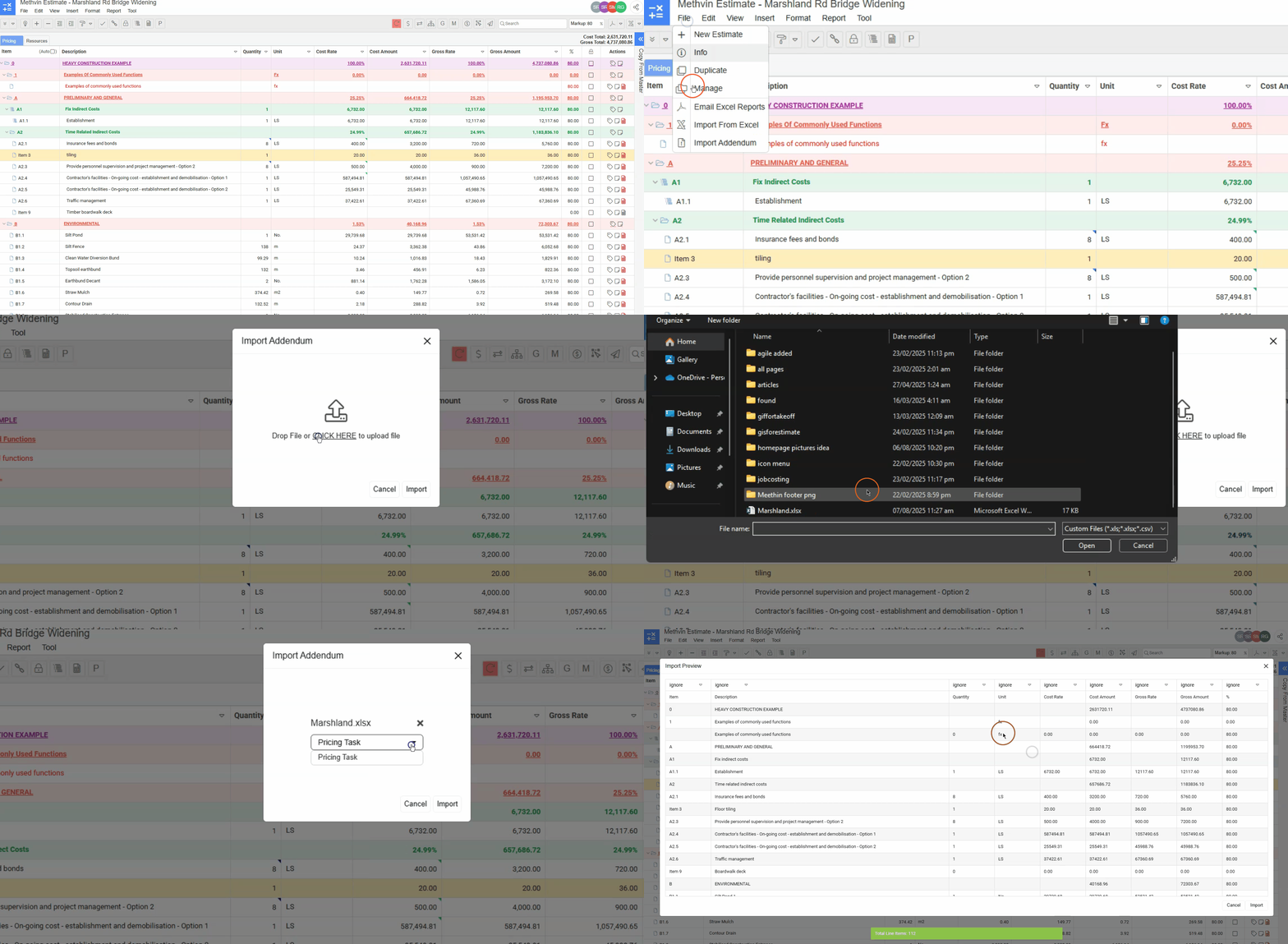
Upload the Addendum File
-
Go to the File menu.
-
Select Import Addendum.
-
Choose the addendum file sent by the client and click Import.
Map the Columns (Import Preview Window)
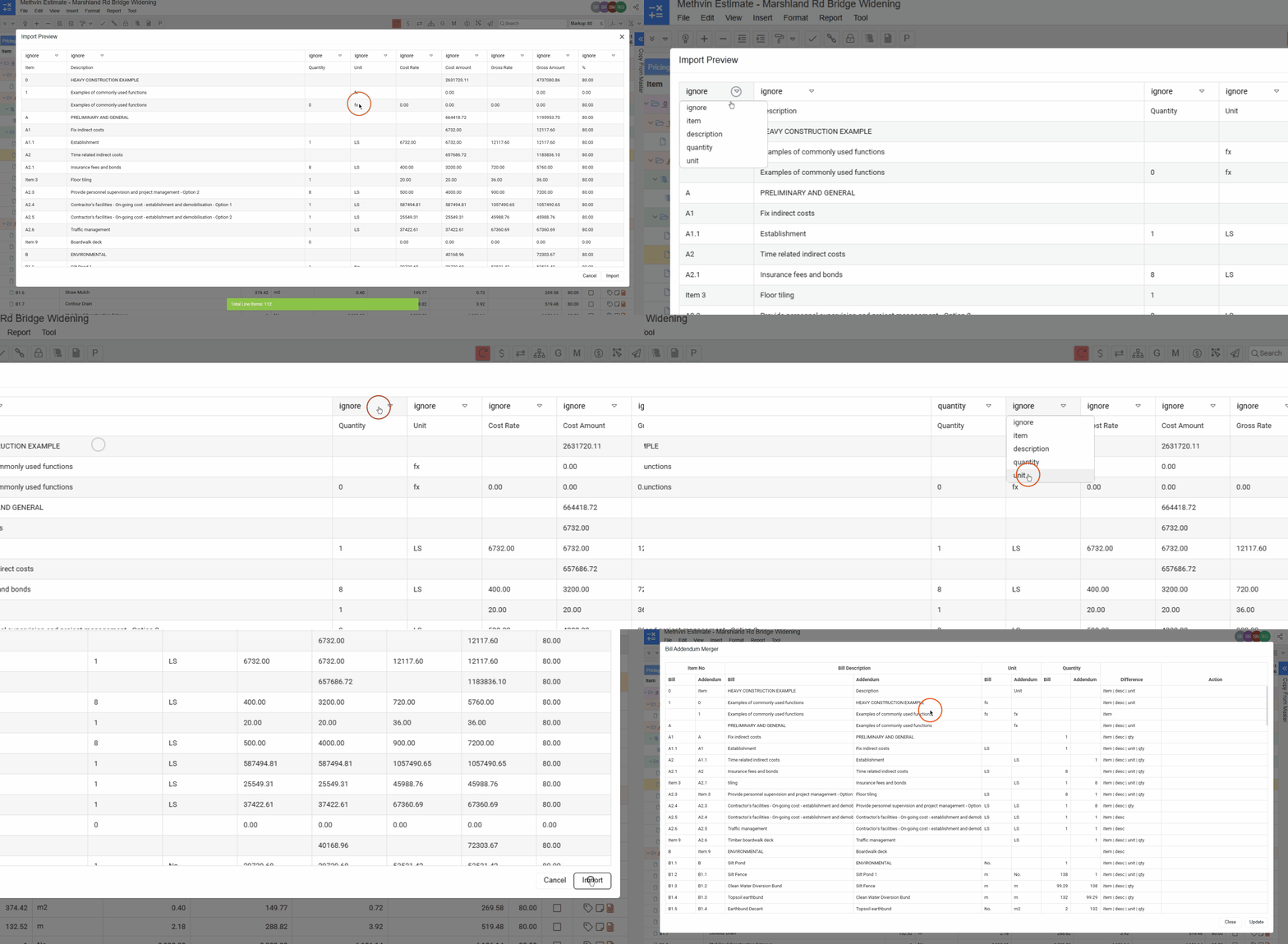
Once the file loads, you will see the Import Preview Window.
-
Map the relevant columns such as:
- Item
- Description
- Quantity
- Unit
-
Use the dropdowns labeled ignore to assign the correct mapping.
-
After mapping, click Import.
Review and Edit in Bill Addendum Merger
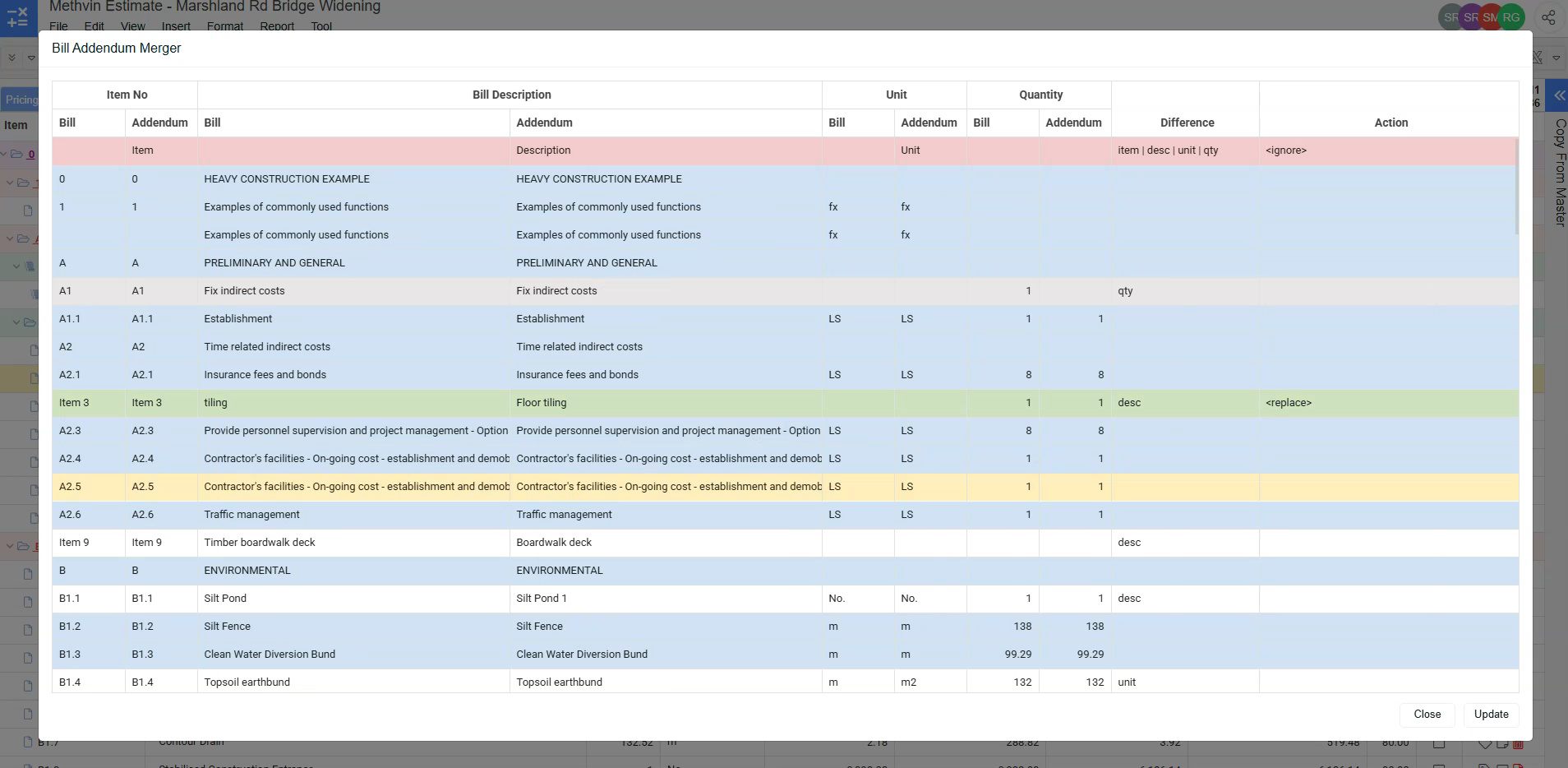
After import, the Bill Addendum Merger window opens.
Here you can:
- Compare each line item between the original Bill and the Addendum.
- The Difference column shows the following differences between the two,
- Item number
- Description
- Unit
- Quantity
- The Action column logs what actions were taken.
Right-Click Context Menu Options
(Right-click any line item to view these actions)
Option Name | Function | Shortcut |
|---|---|---|
Insert Addendum Item | Inserts the addendum item into the estimate as a new line item. | Ctrl + Insert |
Replace Job Item | Replaces the existing job item with the one from the addendum. | Enter |
Delete Job Item | Deletes the original job item. | Ctrl + Delete |
Ignore Addendum Item | Ignores the addendum version of the line item. | Ctrl + F |
Ignore Job Item | Ignores the job version of the line item. | Ctrl + G |
Undo | Reverses the last action you performed. | Ctrl + Z |
Compare Description | Displays the full description of the selected line item, helpful for long texts. | – |
Finalizing the Changes
-
Once you’re done reviewing and applying actions, click Update.
-
Then click Close to return to your estimate and see the finalized version.