

Global Variables
Global variables in the estimate software allow users to define custom parameters that can be applied across multiple sections of a project. These variables can represent values like cost rates, dimensions, or any recurring metric that needs to be referenced in calculations throughout the estimate. Once a global variable is created, it can be easily reused and updated, streamlining your workflow and ensuring consistency across all related calculations.
Create a New Global Variable
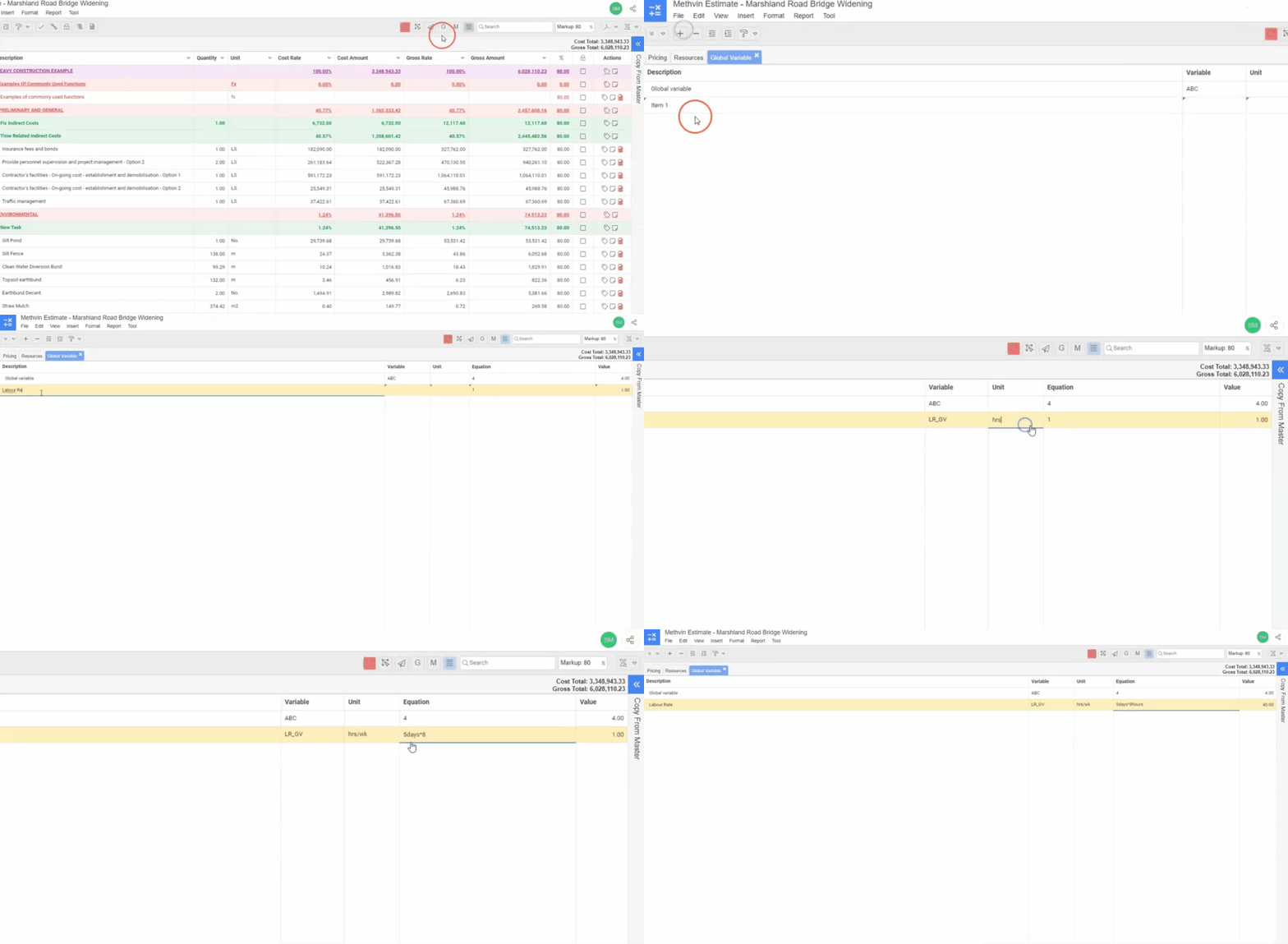
- On the right side of the toolbar, locate the Global Variable
 icon.
icon. - Click the icon to open the Global Variable panel.
- Click the Add Item + icon from the tool bar or from the right click context menu.
- Enter description (e.g., “Labor Rate”), Variable (e.g., “LR”), unit (e.g., per hour, per square meter), equation (e.g., 5days*8hours) and value.
Note: The system will automatically append _GV to the variable name for example (LR_GV).
Referencing a Global Variable in a Worksheet
After creating the variable, you can use it in formulas across the estimate by referencing its name (e.g., using [LR_GV] in a calculation.
- Go to the Equation column in your worksheet.
- Open a square bracket, a dropdown list will automatically appear showing all available global variables.
- Select the required global variable from the dropdown list, OR
- Continue typing the variable name manually for example: [LR_GV].
Delete a Global Variable
- To delete a global variable, right-click on the variable in the Global Variable panel and select Delete Task.
- Or select the variable and use the Delete Task
 option from the toolbar.
Last updated on