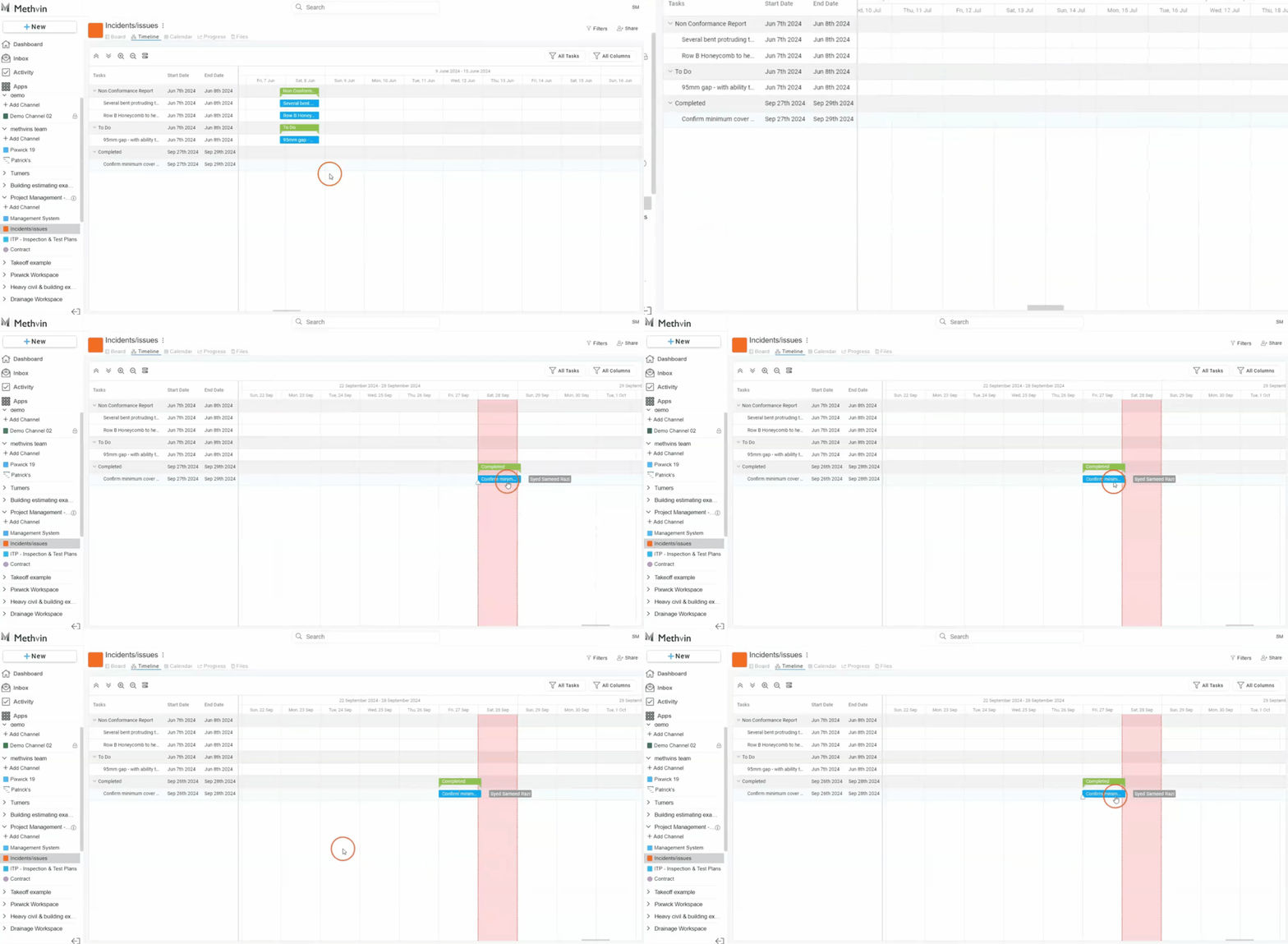

Timeline View
Editing And Managing The Timeline
The Timeline View provides a visual representation of tasks over time, helping users track deadlines and progress at a glance. It is designed for managing tasks with a clear time frame and allows for easy navigation, adjustment, and viewing of assignments.
Timeline Interface
The left side of the timeline displays tasks list organized by sections or categories.
Each task shows the start and end dates, clearly marked next to the task name.
On the right side you can see the timeline with task Bars on timeline, tasks are represented as colored bars on the timeline grid, showing their duration from start to finish.
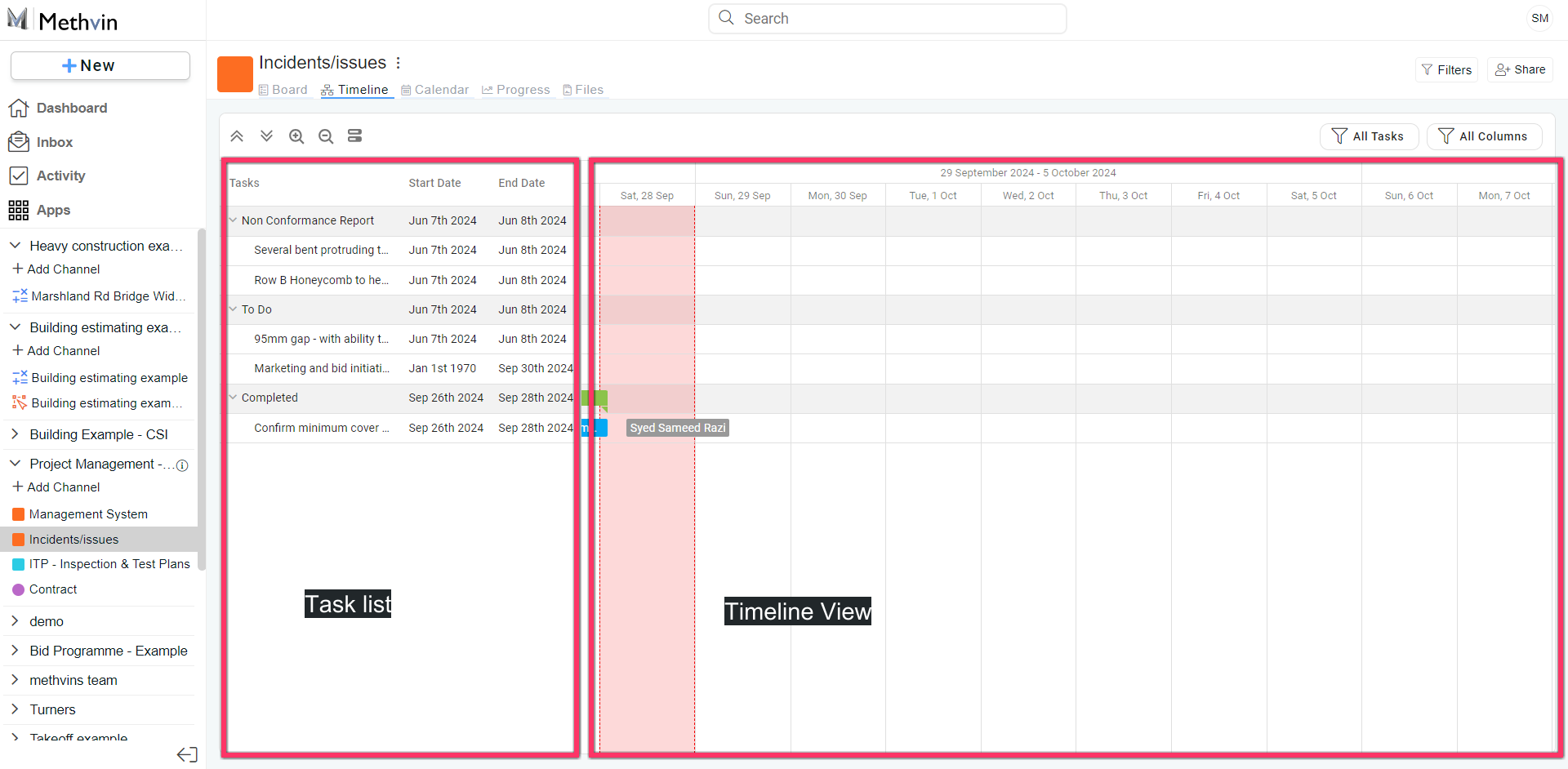

Tool bar option
- Expand/Collapse Dropdowns: Use the expand subtasks or task details.
- Zoom In/Zoom Out: The Zoom In buttons located in the timeline’s toolbar allow users to adjust the time scale, enabling a closer or broader view of the timeline.
- Show Resources: This option lets users toggle between viewing tasks and showing assigned resources for each task on the timeline
- All Tasks/Assigned Tasks Filter: Users can filter tasks displayed on the timeline by selecting between viewing All Tasks or only tasks Assigned to specific members of the workspace.
- Columns Filter: The user can select which columns to show or hide in the timeline.
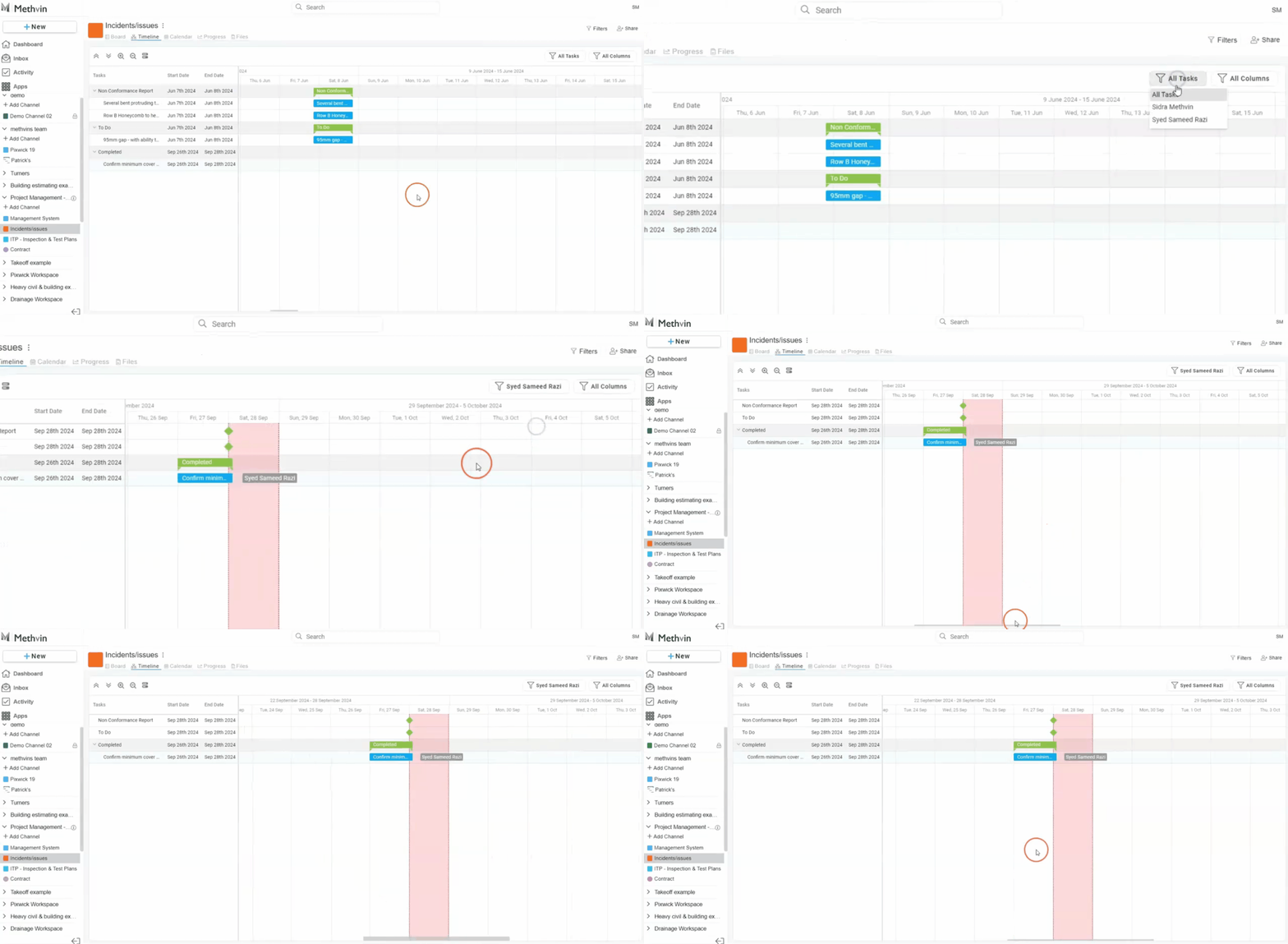
Navigating In the Timeline View
Tasks can be dragged along the timeline to adjust their schedule. This dynamic functionality allows for real-time updates to the project plan.