

Takeoff Application Navigation
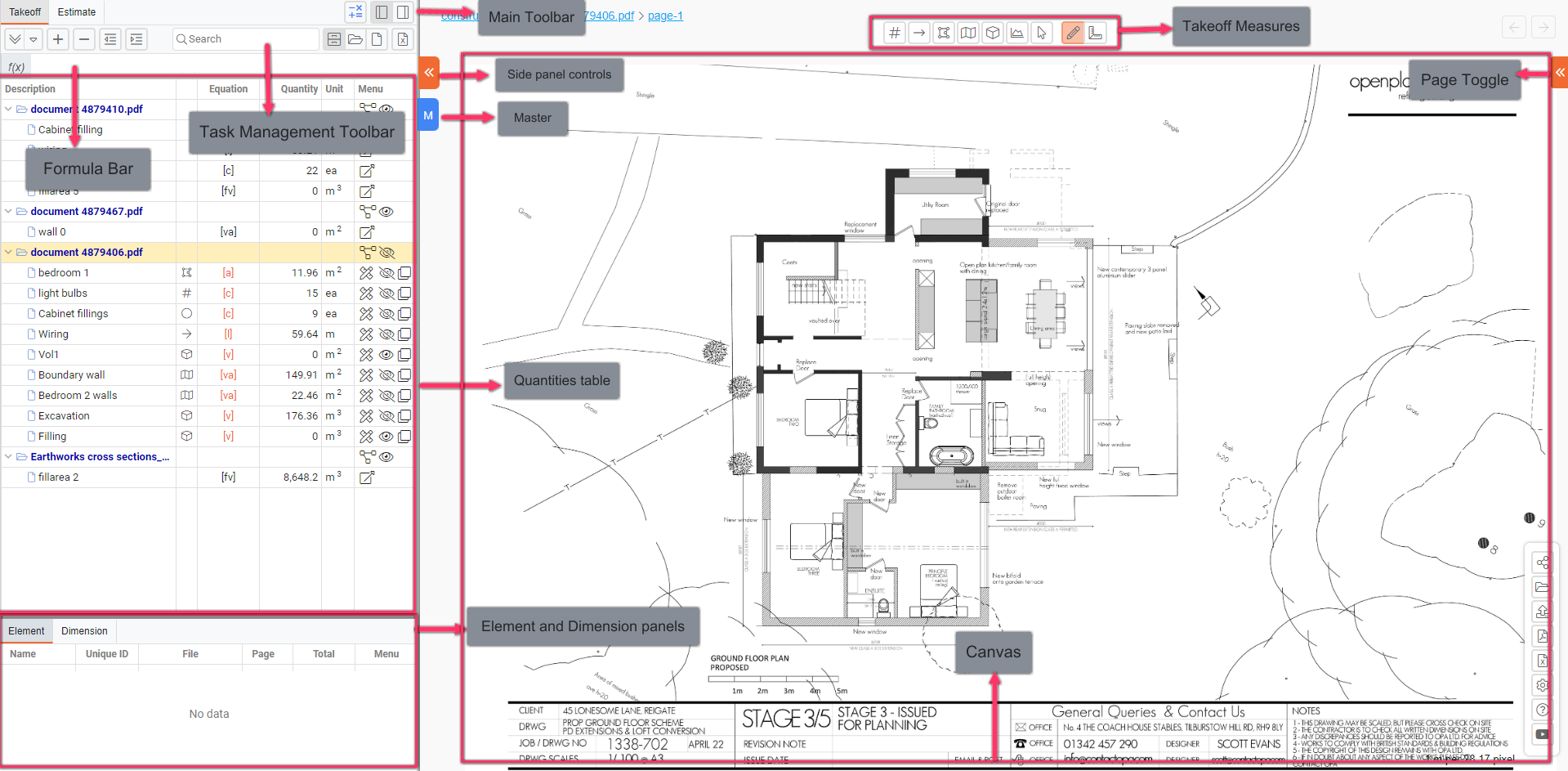
Main Toolbar
- Takeoff: The First tab, currently selected is used to input, view, and manage the takeoff quantities.
- Estimate: The Second tab is used to manage and create estimates based on the measurements taken
- Estimate Icon
 : Located next to the tabs, used to access the estimate.
 - Panel Position Options: You can choose to position the side panel on the right
 or left
  side of the screen using the relevant options available at the top.
Task Management Toolbar
- Expand Option
 : Allows you to expand or collapse the tasks or measurements listed in the panel.
 - Add Task Option
 : Enables you to add a new task or measurement to the list.
 - Delete Task Option
 : Lets you remove a selected task or measurement.
 - Indent
 /Outdent
  Options: Used for adjusting the hierarchy of tasks or measurements.
 - Search Bar: Facilitates quick searching within the tasks or measurements.
- Display SoQ Option
 : Toggles the display of the Schedule of Quantities (SoQ).
 - Filter by Document
 : Allows filtering of measurements based on the document being viewed.
 - Filter by Page
 : Filters measurements specific to a certain page within the document.
 - Export Excel Option
 : Exports the data to an Excel file for further analysis or reporting.
Formula Bar
- Displays and allows input of equations or calculations related to the quantities.
Quantities Table
- Located beneath the Task Management toolbar, the quantities table displays the list of documents, tasks, or measurements along with their quantities, units, and other details
Element and Dimension Detail Panels
- Element Detail Panel: Below the quantities table, where individual elements of a task or measurement are listed.
- Dimension Detail Panel: Displays the dimensions related to the selected element.
Side Panel Controls
- Side Panel Toggle Button
 /
/ : Positioned on the side panel, this button closes and opens the side panel when clicked.
 - Master Button (M) : Stands for ‘Master’, which is used for transferring or applying the current takeoff project settings to another project.
Canvas
- The large area on the center of the screen where the floor plan or document is displayed for markup and measurement.
Page Toggle Button
- The page toggle button / allows you to switch between pages of a document.
Last updated on