





Navigating the Model
Smooth navigation helps you explore the model from every angle and analyze the design in detail. Here’s how you can move around the canvas:
Basic Controls
Rotate / Orbit
Click and hold the left mouse button, then move your mouse to rotate around the model in 3D space.
 Pan
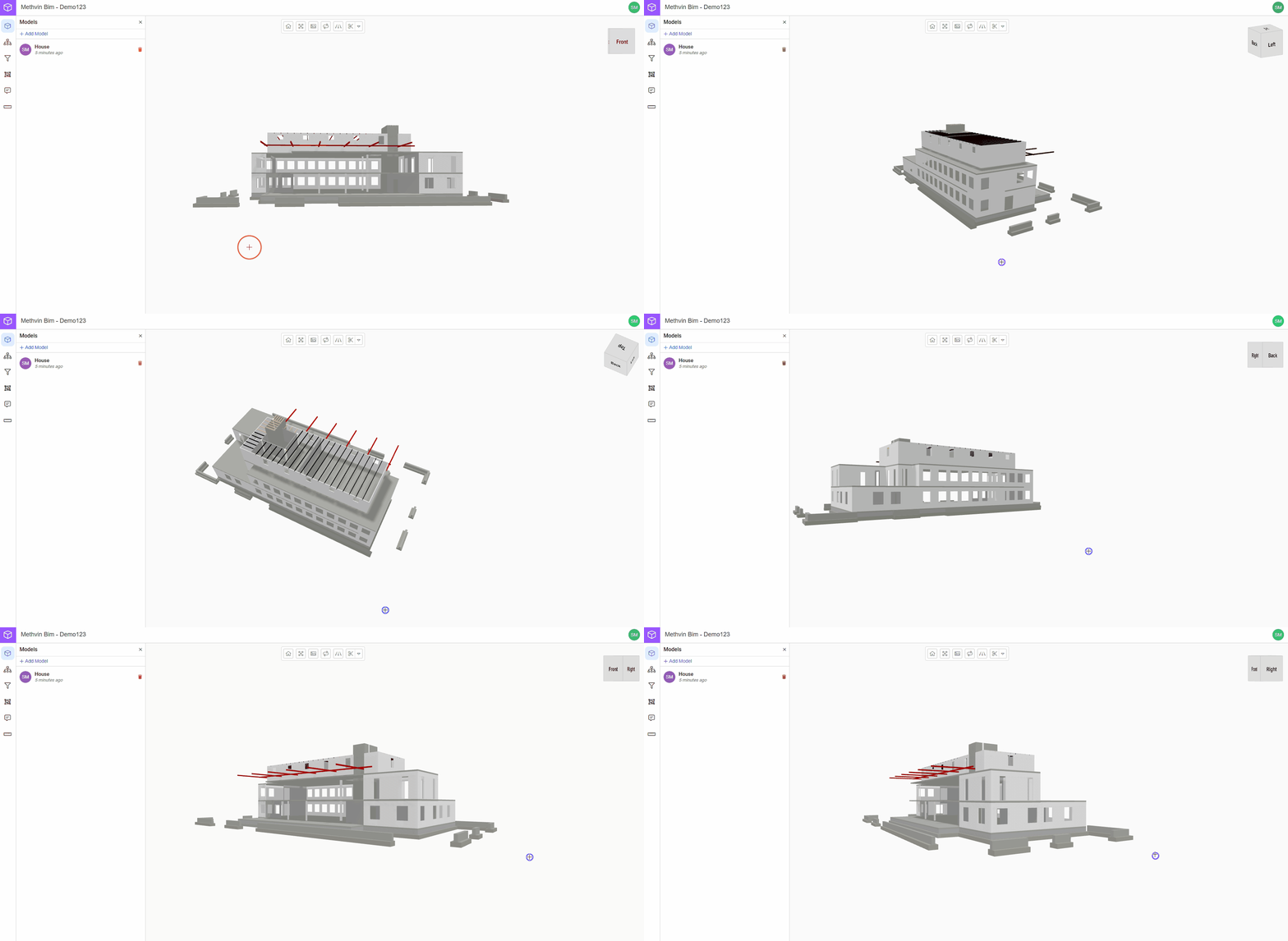
Pan
Click and hold the right mouse button, then move your mouse to shift left, right, up, or down on the canvas.
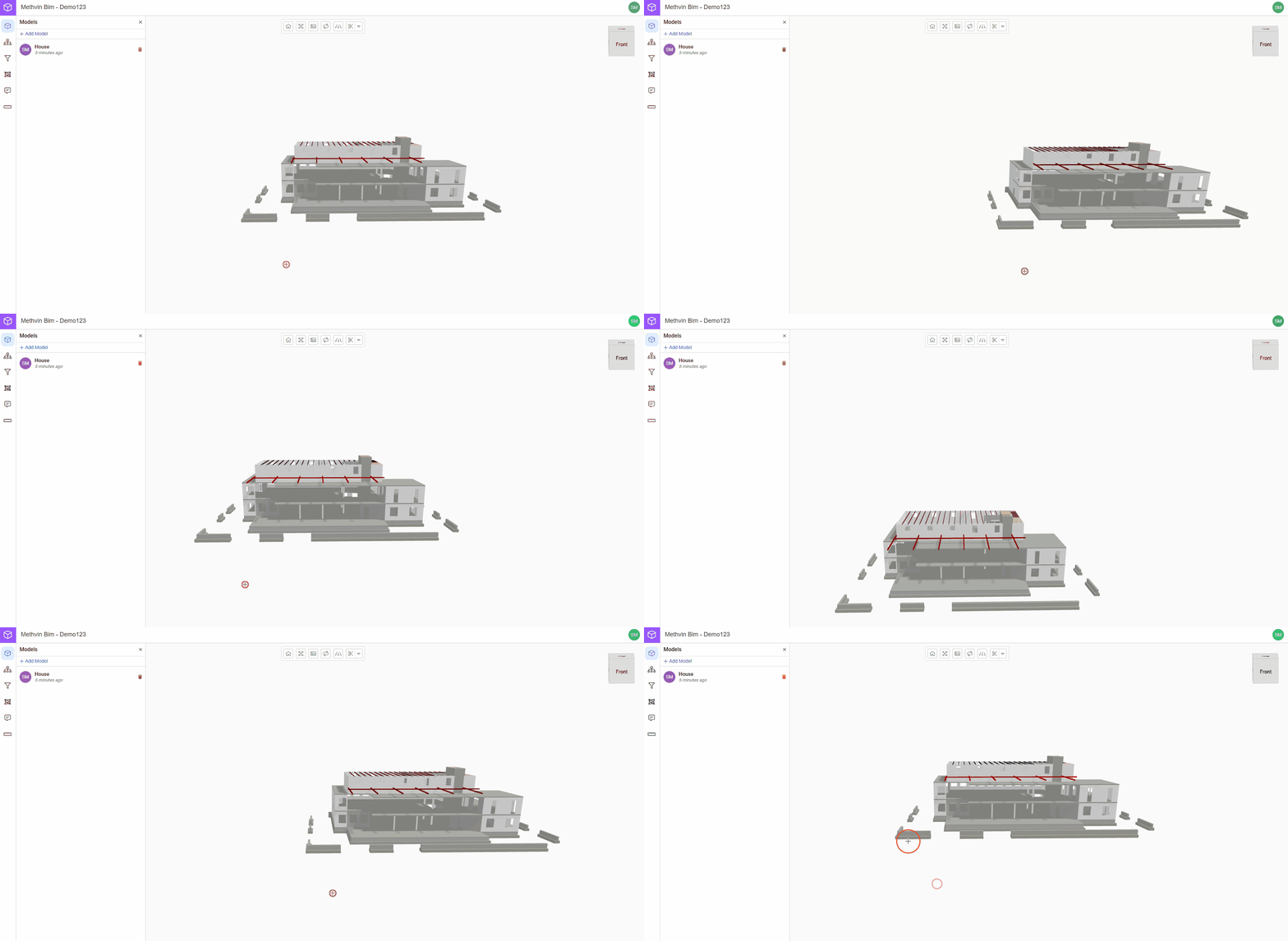 Zoom In/Out
The app includes advanced zoom control using keyboard shortcuts for faster or slower zoom speeds depending on your viewing needs. Use the scroll wheel on your mouse to zoom closer or farther away from the model.
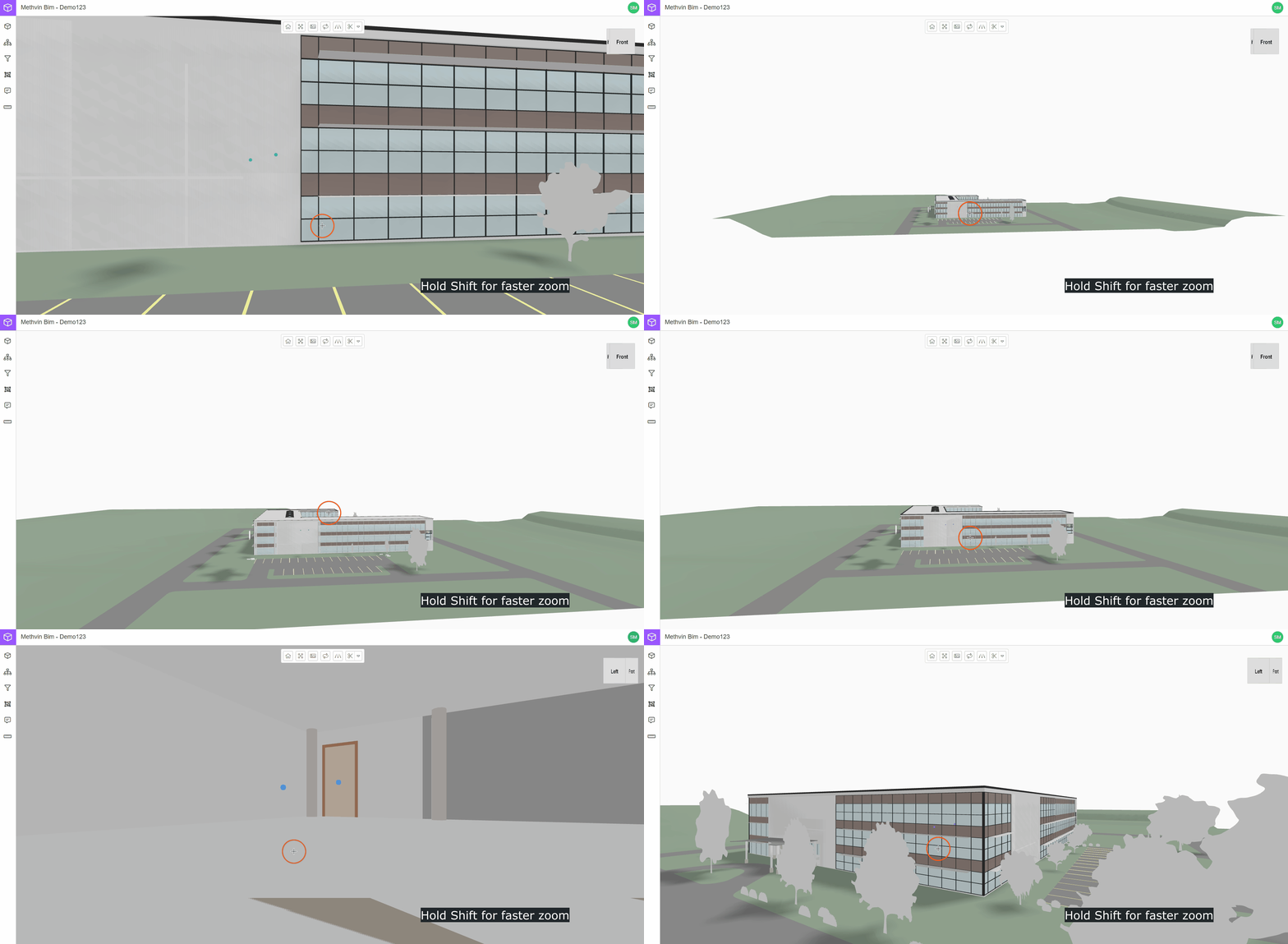
- Shift + Zoom:
Hold Shift while zooming to increase the zoom speed.
This is useful for large models such as buildings or infrastructure projects where you need to move quickly across big distances.
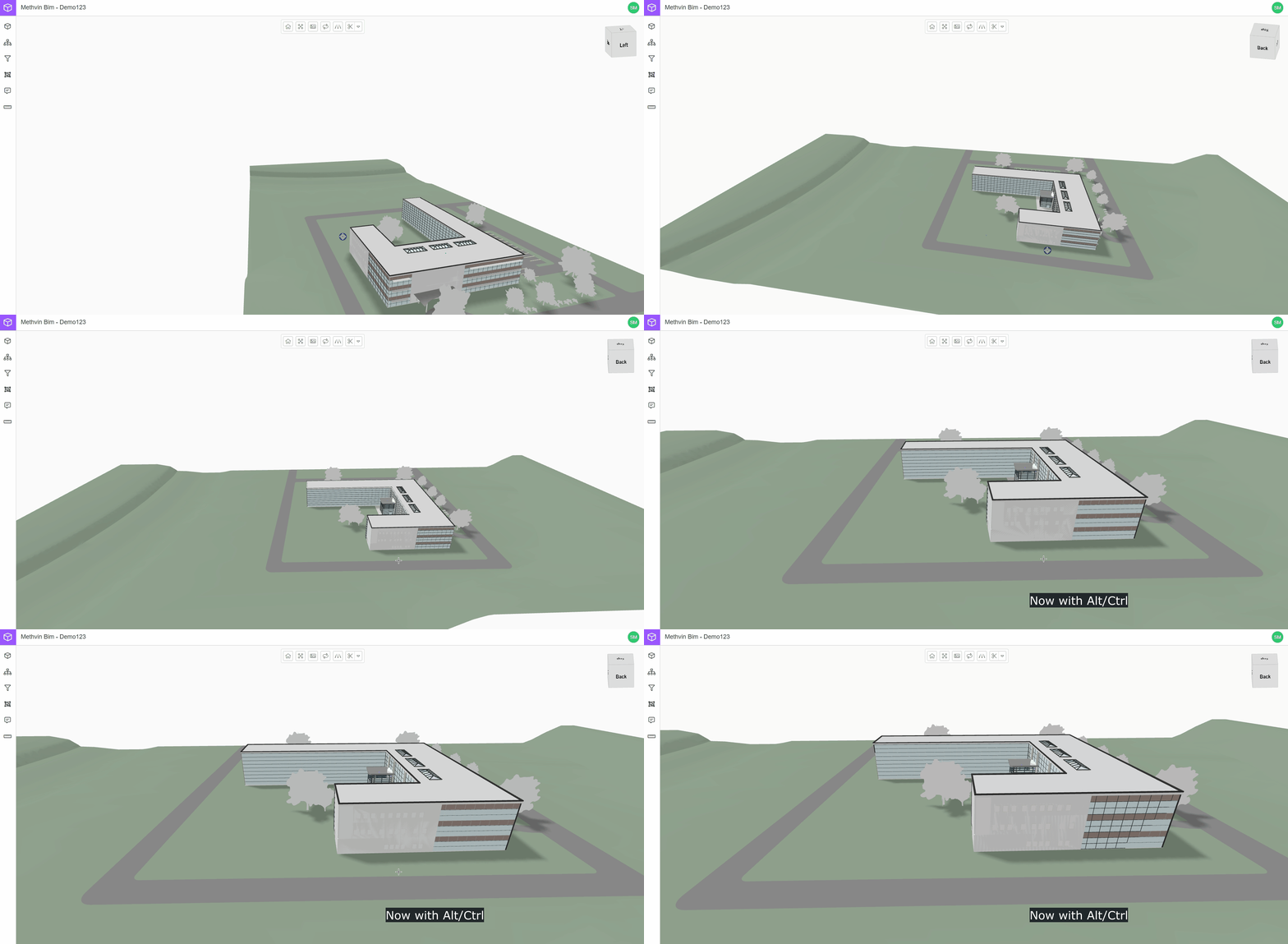
- Ctrl / Alt + Zoom:
Hold Ctrl or Alt while zooming to slow down the zoom speed.
This helps when working in tight or detailed areas, such as navigating inside rooms or around complex assemblies.
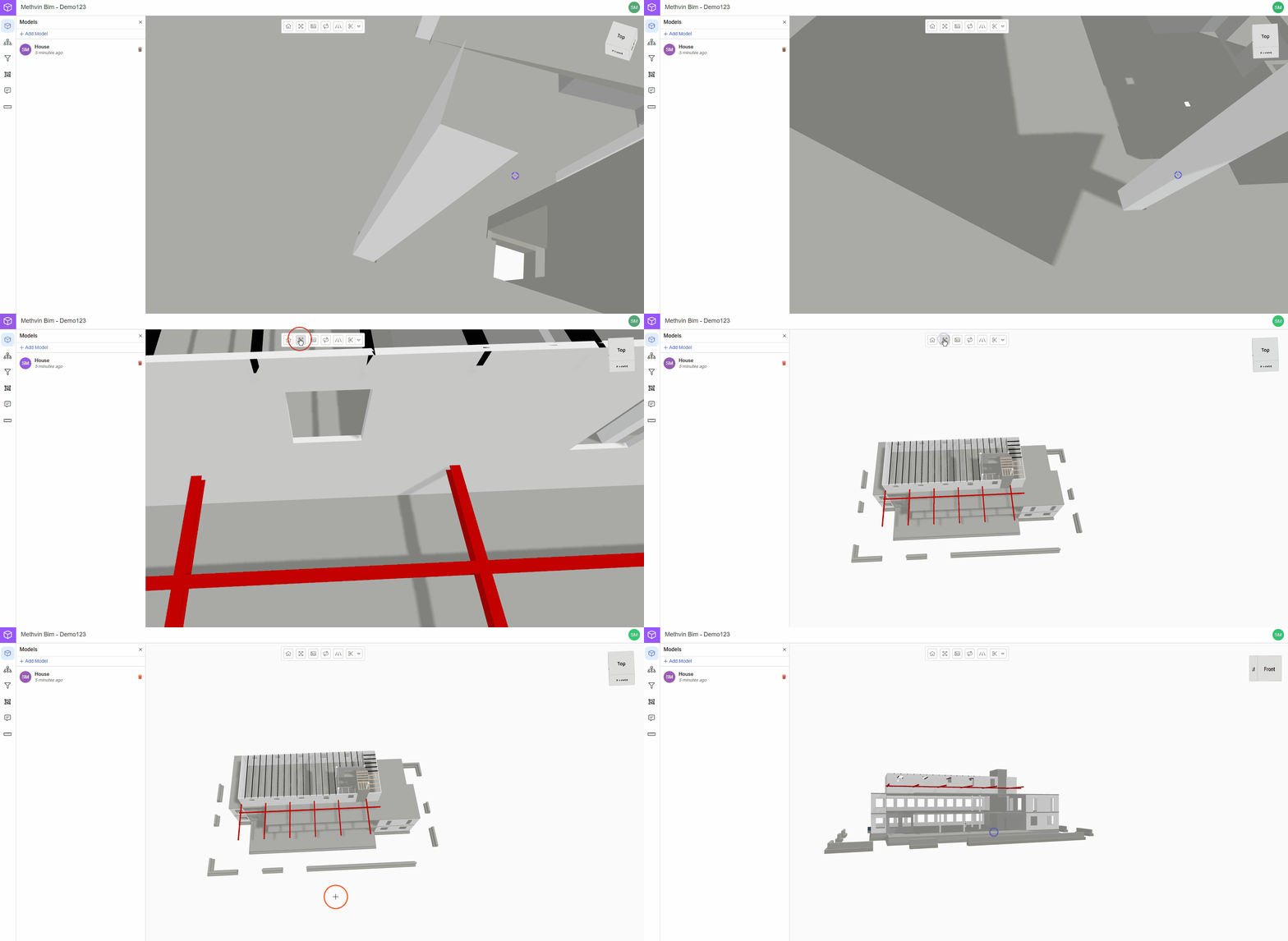
Fit to Screen
Lost your view? Click the Fit to Screen button  in the toolbar to instantly zoom out and center the model in your canvas.’
 Additional Options
- Use the Cube to quickly jump to preset views like Top, Front, Left, Right, and Back.
- The Free Orbit tool lets you rotate all around the model freely—even from below, which fixed views don’t offer!
