







BCF - BIM Collaboration Format
The BCF tool enables precise issue tracking, team collaboration, and communication within the BIM environment.
What is BCF?
BCF (BIM Collaboration Format) allows you to create and manage issues or comments tied directly to locations or elements in your 3D model — all without modifying the actual IFC file.
Open the BCF Panel
- Click the BCF icon
 from the side bar.
 - A list of BCF Topics will appear on the side panel.
Import / Export:
- Use the Import button to load BCF files shared by other collaborators.
- Use the Export button to download your topics and share externally.
Create a New BCF Topic:
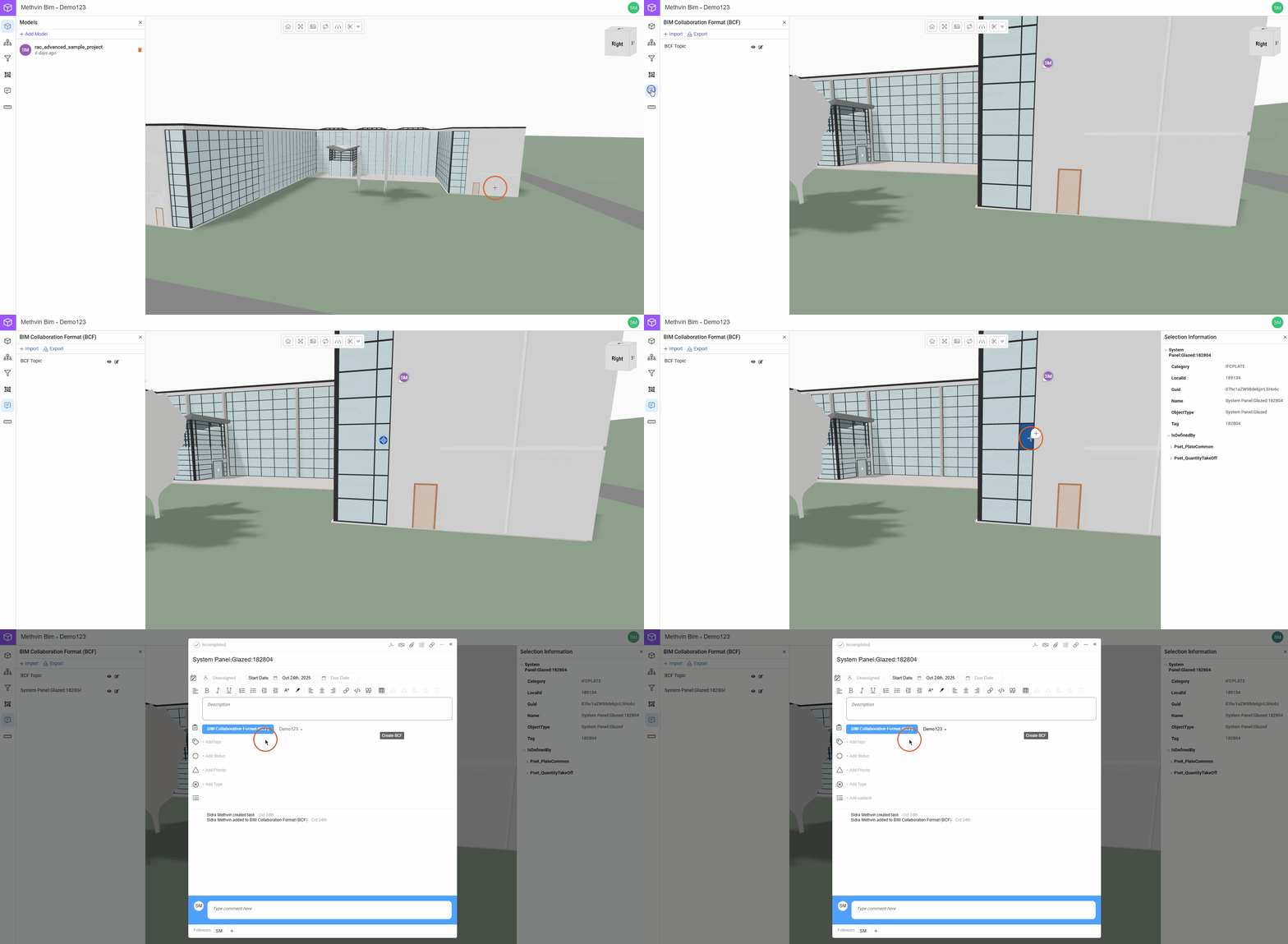
- Double-click on an element in the model where you notice a problem or need to give input.
- Click the “Create BCF” button in the pop-up.
- A new topic will appear in the topic list.
- A detailed panel will now open, enabling you to add structured information about the issue.
Add Details, Assign Responsibilities, and Collaborate
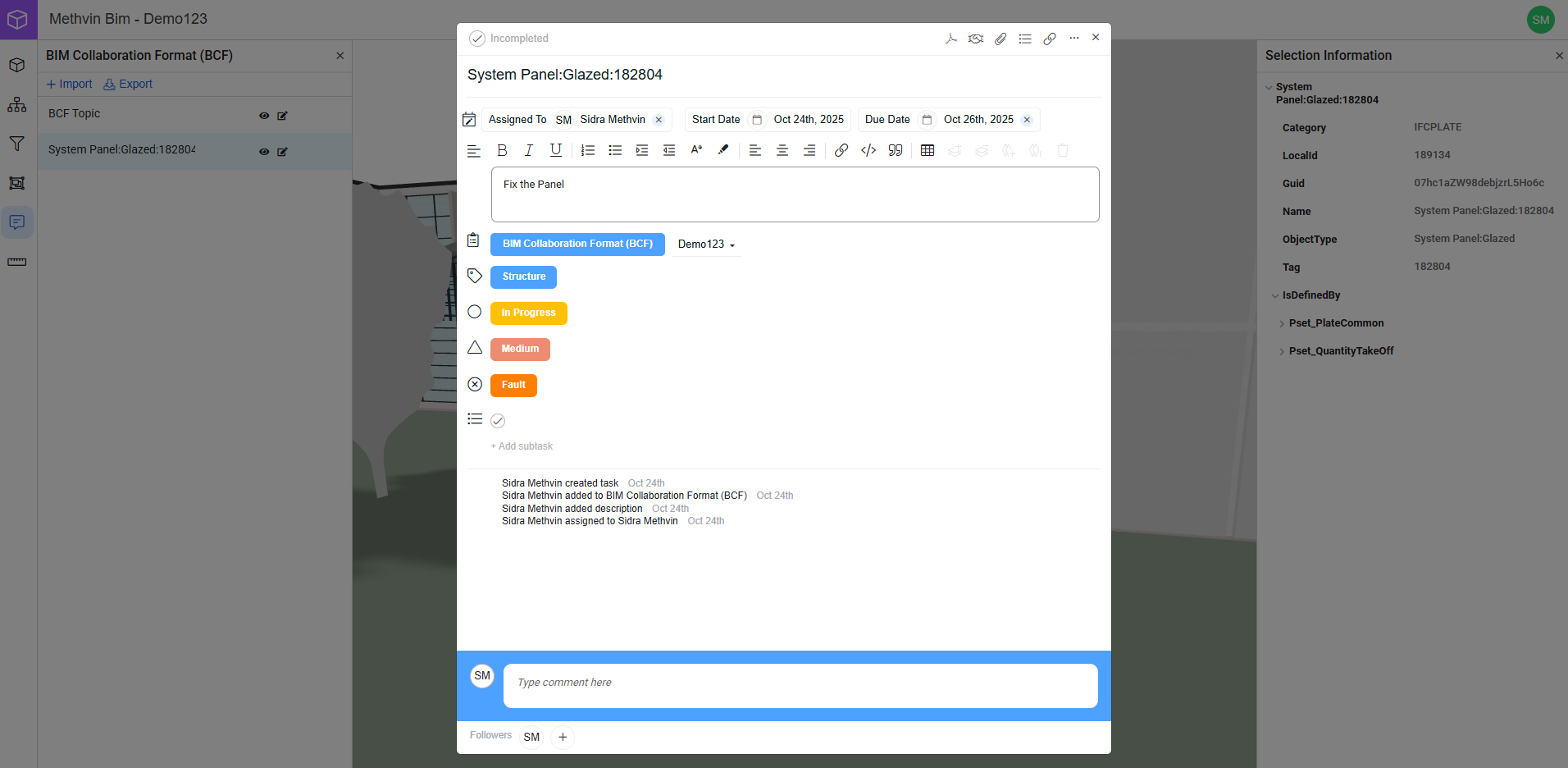
- Click the “Unassigned” button to select a team member who will take ownership of the topic.
- Assign a start date and due date.
- Use the rich-text field to describe the issue or request in detail. Formatting options include bold, lists, and links.
- Click
 +Add Tags to tag the issue with its related discipline(s), such as Architecture, Structure, or MEP. For example A clash between a beam and a pipe would be tagged as both Structure and MEP, because it involves both teams.
 - Click the
 +Add Status button and choose from active, in progress, completed, and in review.
 - Click the
 + Add Priority button and select Low, medium, high, and urgent.
 - Click the
 +Add Type button and choose from Issue, Clash, Fault, and Failure.
 - These tags help the team understand the urgency and nature of the issue at a glance.
- Click
 + Add subtask to divide the issue into smaller, manageable steps.
 - Scroll to the bottom to add real-time comments:
- Add other team members as followers by clicking the “+” icon at the bottom of the window. They’ll be notified of updates.
Attachments and Visual Tools
- Click the download PDF
 to generate a PDF report of the current BCF topic — useful for offline review or documentation.
 - Click the
 to upload reference documents, such as specifications, sketches, or additional images.
 - Click
 to add agreement workflows.
 - Click the three-dot menu
 for more controls:
- Add tags, +add to project,
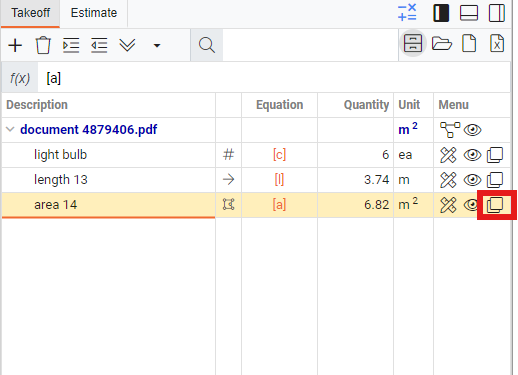 duplicate task, or
 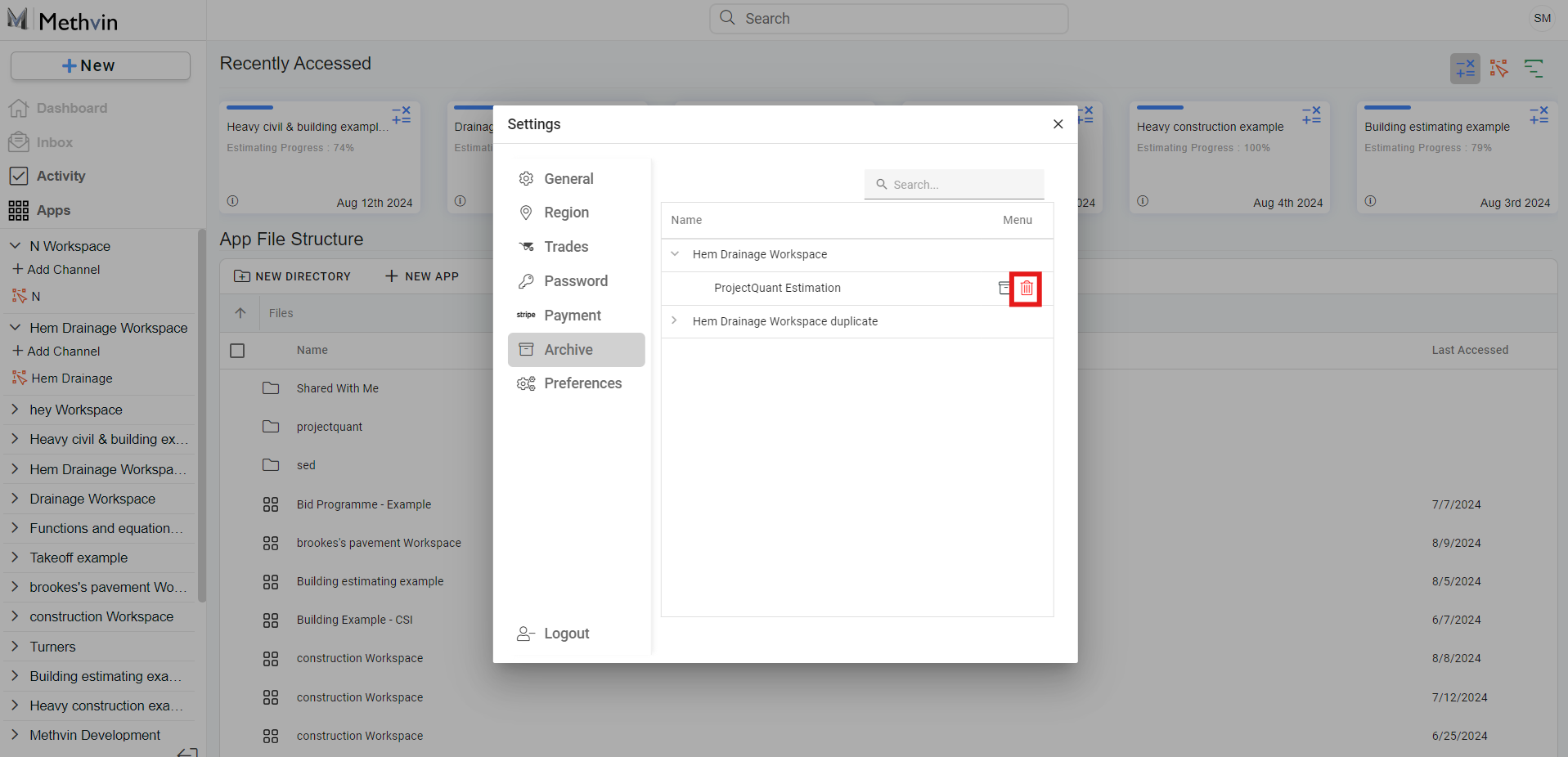 delete the task.
This helps teams communicate directly in the model context, making collaboration clearer and more efficient.
